HDMI sound via ATI graphics card: Difference between revisions
From WickyWiki
No edit summary |
mNo edit summary |
||
| (One intermediate revision by one other user not shown) | |||
| Line 2: | Line 2: | ||
[[Category:Ubuntu System]] | [[Category:Ubuntu System]] | ||
[[Category:201307]] | [[Category:201307]] | ||
This concerns the AMD proprietary driver (fglrx) | |||
== ATI graphics HDMI sound disabled when the television turned off == | == ATI graphics HDMI sound disabled when the television turned off == | ||
Latest revision as of 15:57, 15 July 2013
This concerns the AMD proprietary driver (fglrx)
ATI graphics HDMI sound disabled when the television turned off
The ATI graphics card HDMI sound device is disabled when the television is turned off. Bug report:
Workaround 1:
- Turn TV on
- Reboot
- Keep it on
Workaround 2:
- Go to terminal CTRL+ALT+F1
- Back to Unity CTRL+ALT+F7 / 8
Workaround 3:
xrandr -display :0 --output DFP2 --off
xrandr -display :0 --output DFP2 --auto
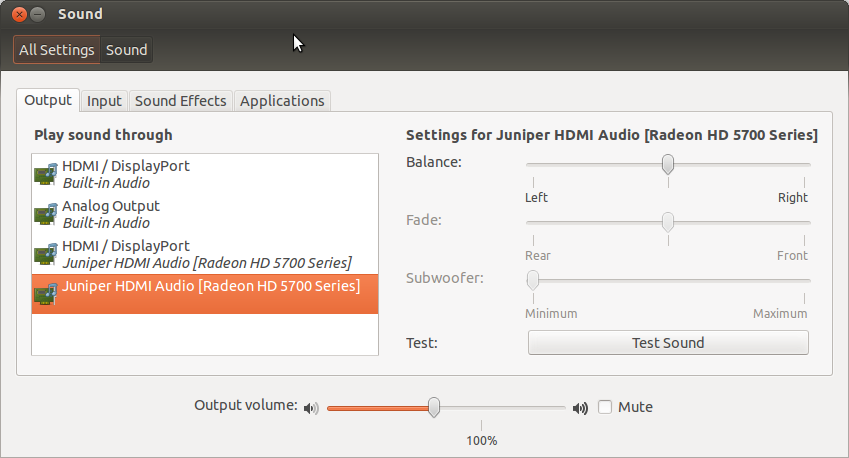
Open sound settings, you should see an HDMI Audio device here:
Testing HDMI audio device
First find your HDMI sound device, in this case card 1, device 3:
aplay -l
**** List of PLAYBACK Hardware Devices ****
...
card 1: Generic [HD-Audio Generic], device 3: HDMI 0 [HDMI 0]
  Subdevices: 1/1
  Subdevice #0: subdevice #0
The following file loads the devices:
/etc/pulse/default.pa
Test with aplay or with speaker-test (card 1, device 3):
aplay -D plughw:1,3 ~/Scripts/other/alarm.wav
speaker-test -c 2 -r 48000 -D hw:1,3
Make sure the card is not muted:
sudo apt-get install gnome-alsamixer
alsamixer
- F6 to select the device
- M to mute/unmute
