HDMI sound via ATI graphics card: Difference between revisions
From WickyWiki
No edit summary |
No edit summary |
||
| Line 3: | Line 3: | ||
[[Category:201307]] | [[Category:201307]] | ||
== | == ATI graphics HDMI sound disabled when the television turned off == | ||
The ATI graphics card HDMI sound device is disabled when the television is turned off. Bug report: | The ATI graphics card HDMI sound device is disabled when the television is turned off. Bug report: | ||
Revision as of 09:21, 1 July 2013
ATI graphics HDMI sound disabled when the television turned off
The ATI graphics card HDMI sound device is disabled when the television is turned off. Bug report:
Workaround 1:
- Turn TV on
- Reboot
- Keep it on
Workaround 2:
- Go to terminal CTRL+ALT+F1
- Back to Unity CTRL+ALT+F7 / 8
Workaround 3:
xrandr -display :0 --output DFP2 --off
xrandr -display :0 --output DFP2 --auto
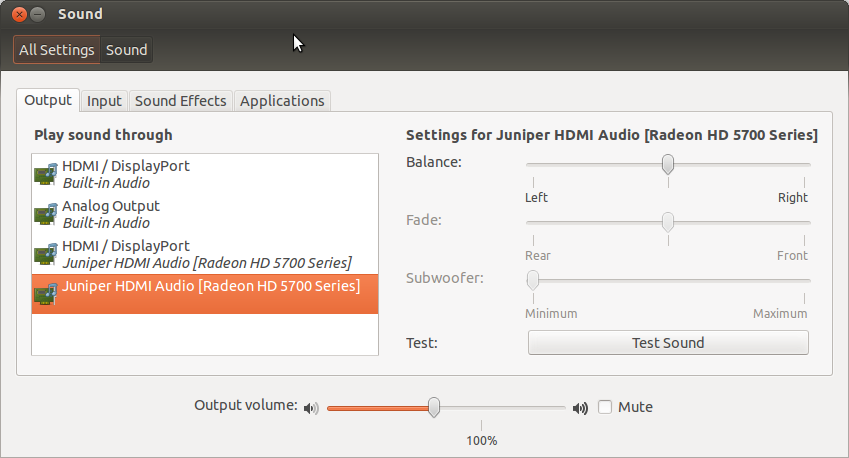
Open sound settings, you should see an HDMI Audio device here:
Testing HDMI audio device
First find your HDMI sound device, in this case card 1, device 3:
aplay -l
**** List of PLAYBACK Hardware Devices ****
...
card 1: Generic [HD-Audio Generic], device 3: HDMI 0 [HDMI 0]
  Subdevices: 1/1
  Subdevice #0: subdevice #0
The following file loads the devices:
/etc/pulse/default.pa
Test with aplay or with speaker-test (card 1, device 3):
aplay -D plughw:1,3 ~/Scripts/other/alarm.wav
speaker-test -c 2 -r 48000 -D hw:1,3
Make sure the card is not muted:
sudo apt-get install gnome-alsamixer
alsamixer
- F6 to select the device
- M to mute/unmute
